|
|
Designing random sampling programs with ArcView 3.2IntroductionGIS is underutilized as a design tool. A good example is environmental sampling. Agriculture, forestry, environmental management, and many, many other disciplines use some form of discrete sampling--that is, point-by-point information--to obtain this information. Usually it is important to obtain information that is representative of the system being measured and which meets required levels of precision and accuracy. This means statistical methods are needed. GIS is a beautiful tool for supporting statistical sample designs. Simple random samplingClassical statistical methods require that samples be random in some sense. Simple random sampling is the most basic: sample points are located, independently of each other, anywhere within the sampling region and all possible sample points have an equal probability of being selected. However, one can often obtain the desired information more cheaply and quickly by structuring the sample locations somehow, such as by requiring them to form a regular array of points.
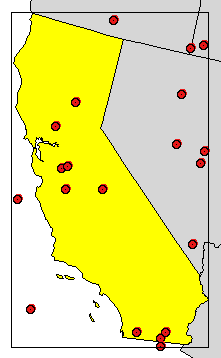
This set of samples was created in ArcView from the interface, with a little sleight of hand. First the U.S. states were projected in an equal area projection. The rectangle (shown) was drawn around the state. The Graphics|Size and Position dialog provided the dimensions and position of the rectangle: Its lower left corner is near (-2370,000, -378000), its width is 730,000 (meters), and its height is 1,226,000 meters. A new point theme was created and 20 points were placed by hand anywhere in the view. Then the Field Calculator was used to compute the [shape] field in the theme's attribute table using this ugly but straightforward expression:
(The view's name of course is "View1".) There is no problem here with the well-known Number.MakeRandom bug (see http://www.quantdec.com/arcview.htm) because the ranges of values are so large, but in other circumstances there could be. A free ArcView 3.x extension, "Simple Random Sample," will create such point themes with the push of a button. (Well, ok, you also have to state how many points you want, but the process is painless.) As in this example, it is always highly desirable to store sample points as shapefiles rather than graphics in an ArcView view. The Sample extension always creates shapefiles. It can also create a shapefile to represent grids, as you will see. Systematic samplingOne way to improve the sampling pattern is to overlay a regular array of cells, or a "grid," on the sample region and to select one or more samples within each cell. This is a systematic sample. It, however, is not random, and so the usual statistical methods to estimate precision and accuracy do not apply to the results.
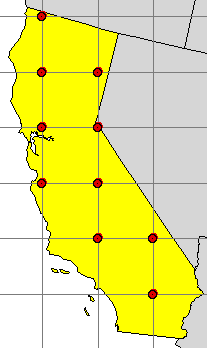
The Sample extension for ArcView 3.2 created this sample set by filling out a single dialog:
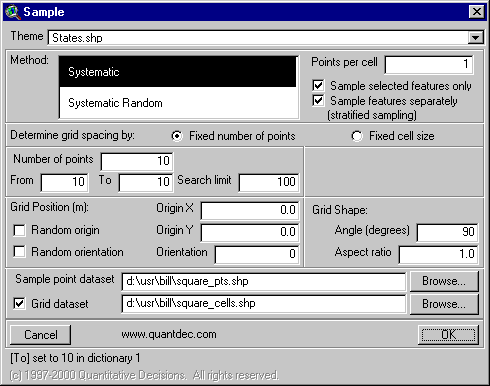
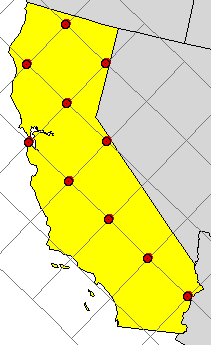
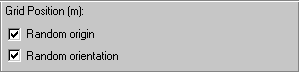
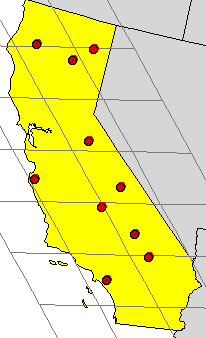
This dialog specifies that exactly 10 points are to be placed within the selected (yellow) state using a square grid (angle of 90 degrees, aspect ratio of 1.0). One node of this square grid (its origin) is to be at (0,0) in the projected coordinate system. The squares should march horizontally and vertically across the map (orientation of 0 degrees). Systematic sampling with random grid positionWe can have our cake and eat it, too, by introducing some randomness into the grid construction. This will not produce a simple random sample--the points will still be organized by cells in a grid, and hence be dependent on each other's positions--but it often is good enough to use statistical techniques. (See Gilbert, Richard, Statistical Methods for Environmental Pollution Monitoring, 1987; or the U.S. EPA's 1988 monograph, Methods for Evaluating the Attainment of Cleanup Standards in Soils and Solid Media.) What can we vary? Two things: how the grid is positioned on the map and its shape. We can select a random origin and random angle to position the grid:
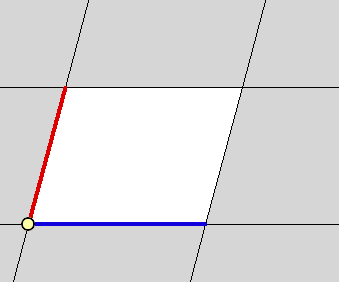
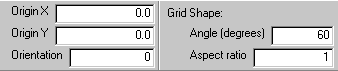
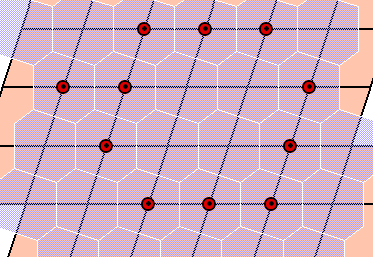
Non-square gridsIn some applications there is advantage to varying the grid shape. For example, guidance for U.S. federal regulations (the Toxic Substances Control Act) recommends sampling for PCBs on walls and floors of industrial buildings with a triangular grid. In other applications, such as river sampling, transects of tightly-spaced samples are desired in one direction, repeated at larger regular intervals in a different direction. This would require a rectangular grid with an extreme aspect ratio (a number specifying how much bigger or smaller the second side of the grid is compared to the first side). An arbitrary grid is laid out in two different directions from a starting point, or origin. At the starting point, draw a vector (just an arrow, really) of any desired length in one of those directions. This is the first basis vector. Now draw another arrow of any desired length in the other direction. This is the second basis vector. These two vectors describe the fundamental cell:
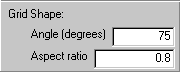
(This description of the grid is not unique, but that does not matter.) The relevant part of the Sample dialog reads:
Systematic sampling with random point placementAnother way to introduce randomness into the design is to place points not at the grid nodes, but randomly (and independently) within each cell. This hybrid approach avoids large gaps and clusters while achieving most of the independence of the simple random sampling design.
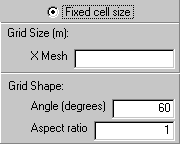
Finally, you can have it both ways: it is perfectly fine to randomly position a grid and randomly sample within its cells. Sampling with a given intensitySometimes you need a certain number of samples per unit area. Many environmental regulations are written that way. For example, Nuclear Regulatory Commission standards for radiation are typically based on amounts detected within arbitrary regions of 100 square meters, such as on squares 10 meters to a side. Sample lets you design sampling programs by specifying the cell area. Random positioning of the grid will result in potentially different numbers of samples each time you try this, but usually the number of samples falls within a predictable range. You haven't yet seen the part of the dialog that does this, so here it is:
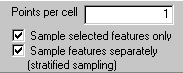
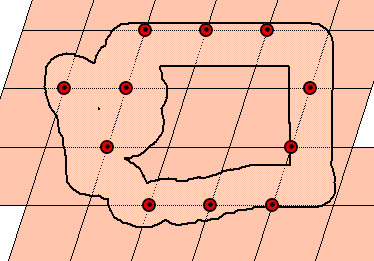
OptionsNot everybody represents their sampling region the same way. You may only have a dataset of California counties but will want to sample the entire state. Thus, you will want to treat the set of counties as if it were a single region. In other cases you may want to create many different sets of samples for a collection of sites. Once I was asked to design a soil sampling program for a former pesticide research facility where investigators had identified 60 different areas of concern. Each area needed its own systematic sample. A precursor to the Sample extension did the trick. The Sample dialog provides simple checkboxes for these options:
You have to be a little careful, especially with small sample sets. Sometimes it is not possible to find a grid meeting all your specifications. Some flexibility to find sample sets that approximately meet your needs is necessary. For example, in practice there's not much difference between 29, 30, or 31 samples. Sample lets you provide a desired range of sample sizes instead of limiting to exactly one number. In such cases number of points is used as a hint to the search algorithm, but the actual criteria for a valid sample design depend only on from (the smallest acceptable sample set) and to (the largest).
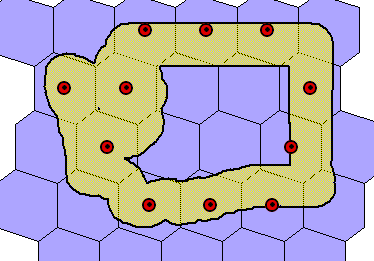
The search limit is the number of grids Sample will construct before it gives up looking for a sample set meeting all your criteria. New in version 3.03, September 2001: By default, Sample outputs grid cells that are bounded by grid nodes. When sampling systematically, you may use the centered cells option to create cells in which the nodes are the centers. That is, the cell for any grid node is the set of points closest to that node (and no other grid node).
Sample's output is topologically consistent: that is, where any two cells overlap, they overlap exactly, without any floating point error. MetadataGIS professionals have learned the value of documenting procedures used to manipulate or create data. Statisticians know that the correct interpretation of sample data depends, sometimes crucially, on the sampling design. Therefore, Sample automatically records every aspect of its dialog when it creates a sample set. This information will immediately appear in a Script Editor window. It is stamped with the date and time to help you sort out a series of results you have produced. Sample also records the sample coordinates and grid cell identifiers as attributes in the output shapefile. After all, once you have designed a sampling program, you need to communicate it. Having a GIS helps immensely here, too: both the map and the table of coordinates are usually needed to find the points in the field. New in version 3.03, September 2001: Metadata reporting has been enhanced to include details of every output grid and sample set. All grid properties are reported. The number of sample points found is shown. Miscellaneous features
Other uses for Sample
Oh, by the way--the Sample extension, when loaded, is activated
through a new button
Order the Sample extension.
|
ColorRamp, Memorized Calculations, Rotate, Sample, XSect, and Tissot are trademarks of Quantitative Decisions. All other products mentioned are registered trademarks or trademarks of their respective companies.
Questions or problems regarding this web site should be directed to [email protected].
|



 in the ArcView View GUI.